Patient File
The patient file can be accessed via the menu tree shown
immediately above, but most often is displayed from the invoice data
entry screen when entering a patient. Functions from the main invoice screen include:
Add a Patient from INVOICE screen
Delete (Existing Patient)
A-Add (New Patient)
Patient Screen Field Descriptions
D-Display (Existing Patient)
E-Edit (Change Existing Patient Data)
F-Find (Search for Patient Code)
M-Memo (attach a Memo to a patient record)
Special "Contract" (patient) Status for -HMO's, Nursing
Homes, etc.
Following are screens involving Adding/Modifying/etc. Patient data
Screen 1 here are two ways to get to the Main Patient Screen 2: (1) From the Main Menu-Screen1 and (2) From the invoice data entry screen.� 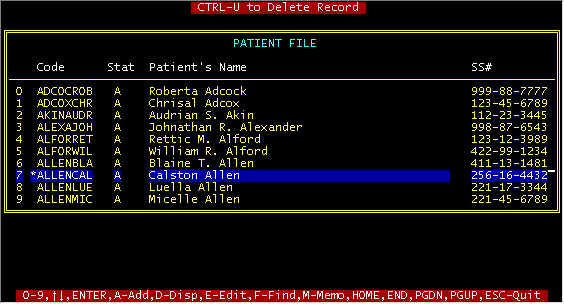 Screen 2 - Main Patient Screen Note that deleting a patient from this screen can be done by highlighting and holding down the Ctrl key and tapping the U key. However, the patient cannot be deleted if there is an outstanding balance on any invoices. Also note the asterisk (*) by the patient code ALLENCAL - this denotes that a memo is attached to this record as described below. As mentioned, Screen 2 above is accessed from the FILES menu as shown, but this same screen is displayed when entering a new invoice and the patient code is entered. Highlighting an invoice and pressing the A-Add, D-Display, or E-Edit will display the following screen. � 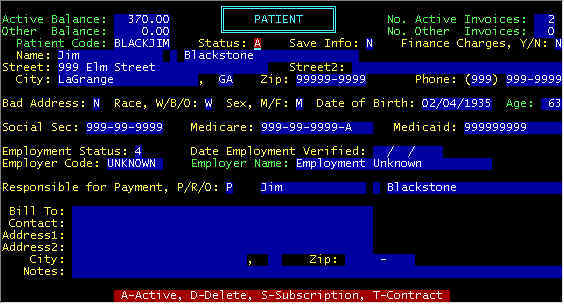 Screen 3 - Detail Patient Screen Screen 3 above is accessed from the previous screen, as well as from the main invoice screen pressing the function key F5. If from the previous screen, you pressed D-Display, screen 3 is displayed, with no capability to Edit or change. If you pressed E-Edit or if you got to screen 3 via the F5 key from the invoice screen, you are able to change fields other than those in green above. A description of each field follows. FILES menu as shown, but this same screen is displayed when entering a new invoice and the patient code Explanation of Detail Patient Screen 3 Data Fields
When the main patient screen 2
is displayed, the file is sorted alphabetically by patient code. To search for a
patient, press the F key and a prompt line will be displayed to enter an 8-character
patient code. If you enter a complete patient code, you may neither find a match nor
near matches, and if you enter too few characters, you will see too many matches.
Thus, enter the first 5-6 characters, then either highlight your selection or
select the A-Add to add a new patient. From the invoice data entry
screen, it is assumed that a patient code (or partial code) has been entered. If the
patient code is not on file, the main patient screen 2 will be displayed showing the
nearest matches. If you already have the patient on file under another code,
highlight the patient and press enter, else either press the F key to find or the A key to
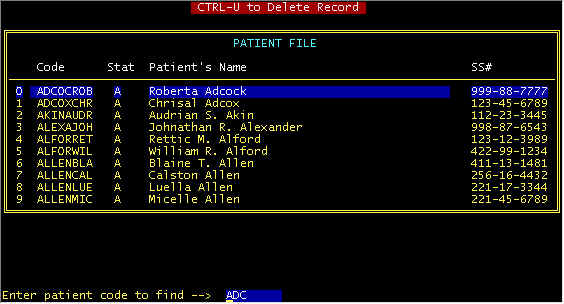
add a new patient--first the F key, and then the A key. Screen 4 - F-Find a Patient creen 4 shows the result of pressing the F key and entering a partial patient code ADC. We were looking for an Adcock, and did not bother to enter the complete code.A-Add Patient (from the
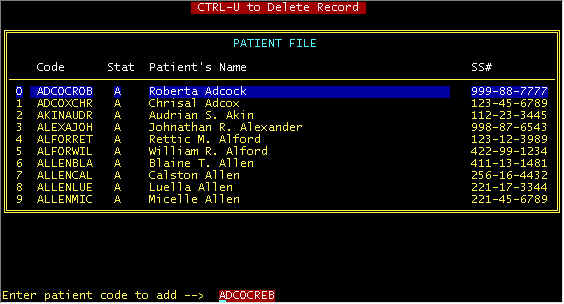
detail Invoice Screen) Screen 5 - Add a Patient (From Invoice Data Entry Screen) creen 5 shows the result of branching from the invoice screen (the norm), after entering a patient code of ADCOCREB (for Rebecca Adcock). First, screen 5 was displayed (without the prompt line) showing near matches to protect against adding the same patient twice with different codes. Seeing that there was not a Reba Adcock on file, the A key was pressed (A-Add) whereupon the prompt line was displayed WITH the patient code entered in the invoice screen. Pressing the <ENTER> key at this point will display screen a (blank) screen 3 to add the new patient.MEMO (Attach Memo to Patient Record) One option from screen 2
is to attach a memo to a patient record. From screen 2, highlight a patient and
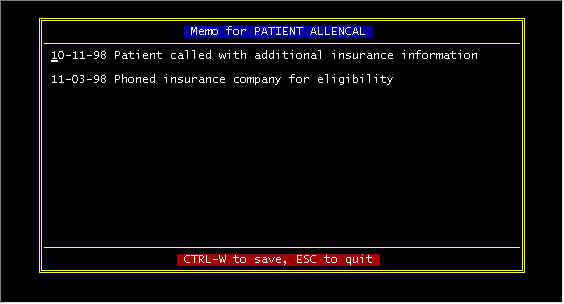
press the M key, the following screen will be displayed. Screen 6 - Add Memo to Patient Record creen 6 shows the result attaching a memo file. Here, you can type any and as much as you care to. Usually Ctrl END saves a file, but this is the only exception--to save, hold down the Ctrl key and tap the W key. When a memo is attached to a patient record, an asterisk (*) appears to the left of the patient code, as shown in screen 2.Contract
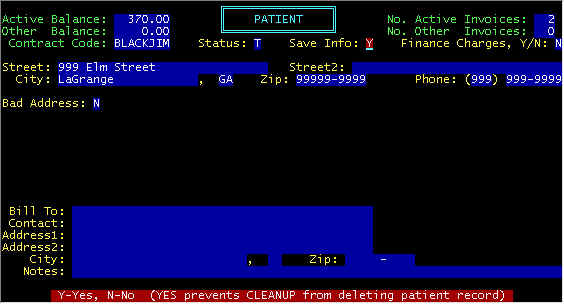
(Special Contracts-Nursing Homes, etc.) Screen 4 - Detail CONTRACT Patient When the patient status field is T-Contract, the patient detail screen will appear as shown in screen 4. Data entry fields are explained above. |