Manual / Transaction Summary
Transaction Summary
Back to Table
of Contents
Invoice-Display Transaction Summary
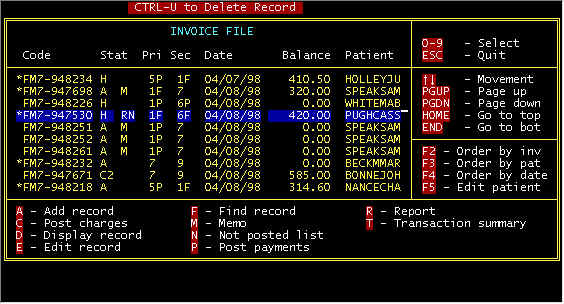
From the main invoice screen (below) selecting T-Transaction summary will display all active invoices, charges, payments, etc.
Invoice-Display Transaction Summary
From the main invoice screen (below) selecting T-Transaction summary will display all active invoices, charges, payments, etc.
Screen 1-Main Invoice |
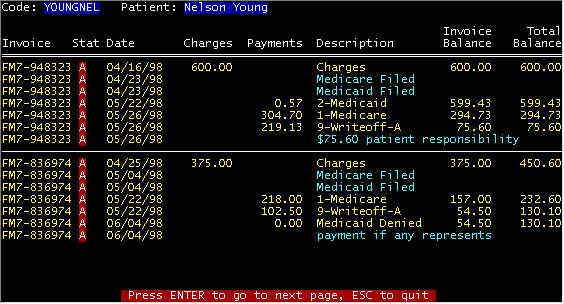
Invoices Transaction Summary Display
All active invoices for one patient will be displayed by
highlighting the invoice in Screen 1 - Main Invoice (above) and pressing the T key.
In this example, it takes more than one screen to display all transactions, and pressing
the <ENTER> key will display the next page (screen).
Content adapted from the CES EMS Fast Cash Billing Manual on ces-web.com. For support call (706) 882-4704 or email mail@ces-web.com.