Collection Leters
Back to Table
of Contents
Sample Collection Letters
-
Sample Collection Letter 1
Sample Collection Letter 2
Microsoft WORD Mail Merge Master Document
Microsoft WORD Mail Merge Procedure
Using a word processor, and after merging the master document with the extracted collection data, a series of letters are generated; one is shown below. The formatting below may not be exactly like the letter generated by the word processor, but the letter content is a guide as to what you may want begin with and modify to say more specifically to suit your requirements. The signature is scanned so as to look like an actual signature, and alleviates signing each letter. You may choose to actually sign your letters.
This letter is generated with a mail merge function of a word processor. A word processor master document is prepared, and interfaces with the extracted collection data such that a specific letter is generated for each invoice extracted.
The master document will vary from one word processor to the next. CES supports certain versions of Microsoft WORD and Corel WordPerfect, and supplies sample master documents--click on the word processor to see more specifics of what the master document looks like, how to use, etc..
For the letter below, note that the address is on the right side for right windowed envelopes. Also note that the top line of the table is a fold line such that the address appears in the address window. The date is a function field such that the date printed automatically appears there.
Figure 1 -- Printed Collection Letter 1
December 7, 1998
Dear Mr. / Ms. Harriman: Your City Ambulance Service (LaGrange, Georgia) has authorized CES as an
agency We have billed you multiple
times in the past, but our records still show a past due balance A reasonable payment plan is
available to you if you make the effort to contact us immediately. If we do not hear from
you within 10 days, we will turn your account over to a I am deliberately withholding
any action on your account for the next ten (10) days. If we do Please extend us the courtesy of a toll-free phone call at 1-800-482-4704. Sincerely, |

Figure 2 -- Printed Collection Letter 2
December 7, 1998
Dear Mr. / Ms. Harriman: Your City Ambulance Service (LaGrange, Georgia) has authorized CES as an agency for Ambulance billing. We have billed you multiple
times in the past, but our records still show a past due balance You did not respond to our
letter, and thus, we are doing what we said we would do, namely, turn this invoice over to
a collection agency. You will be contacted by the collection agency. The status of the invoice noted above does not reflect the status of more recent invoices, if any. In the future, you can avoid us having to turn your delinquent invoices over to a collection agency by making some attempt to work out a payment plan. I regret that you did not make the effort to establish some type payment plan with us. Sincerely, |
The procedure for all letters (letter1, letter2, etc.) is the same, and therefore, only letter1 is demonstrated below. The letter above was generated by opening Let1.doc (shown below in figure 3) as a mail merge document. Certain things must be in place to do the mail merge, and starting from square 1 are as follows:
- You must have a place for collection data to go when the extract function is executed.
this place is user-defined in company screen1, and looks like this
 Here we have specified the hard disk drive C and subdirectory COLLECT. You must make
a COLLECT sub directory by getting to DOS Prompt (and there are other ways) and to the
root directory of the C Drive and typing MD COLLECT (Make Directory COLLECT)
Here we have specified the hard disk drive C and subdirectory COLLECT. You must make
a COLLECT sub directory by getting to DOS Prompt (and there are other ways) and to the
root directory of the C Drive and typing MD COLLECT (Make Directory COLLECT) - You must generate a master document in the COLLECT directory as shown in figure 3 -- a sample will be supplied, and you can modify to suit.
- You must have a Header file to define the relationship between the fields
in the master document with the names and positions in the extracted data.
For example, the Patient's first name is called PAT_FNAME and is in position
4 of an extracted data record--you can relate information in this header
file to the letter. The header file is a one row, multiple column
table (and there are other ways) that is shown in the collection section,
and repeated here:
INVOICE PAT_CODE SER_DATE PAT_FNAME PAT_MINIT PAT_LNAME RP_FNAME RP_MINIT RP_LNAME ADDR1 ADDR2 CITY STATE ZIP A_CODE PHONE SSN AMT_INIT AMT_PAID AMT_DUE SIGNATURE - Your COLLECT sub directory should have the following files, but you may name these files
differently:
File Name Description LET1.DOC Master document-Letter1 LET2.DOC Master Document-Letter2-Optional unless you are using two collection letters HEDR_COL.DOC Header File LETTER1.DAT Extracted collection data-letter 1 LETTER2.DAT Extracted collection data-letter2 - If you do not have a Header file that is compatible with the extracted data (same version), you will get an error message when you attempt to merge a document. If you do not have an existing LETTER1.DAT file when attempting to merge a document, you will get an error message--note that LETTER1.DAT is deleted prior to extraction, and if there are no letters to extract, you will not have a LETTER1.DAT in the COLLECT directory.
- Your word processor screens will look like this
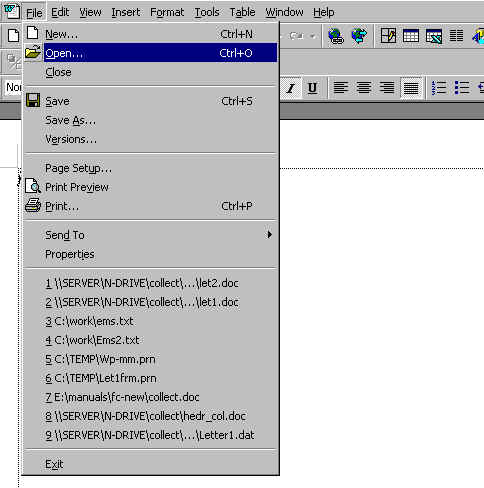
Here, we have selected File, then Open
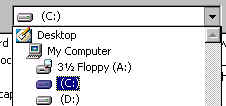
Then we click on the down arrow in the line that is labeled LOOK IN and select the Cdrive (C:)
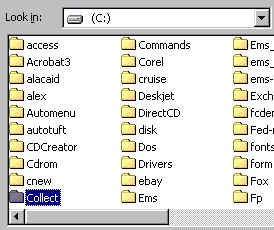
Next we select the Collect Directory
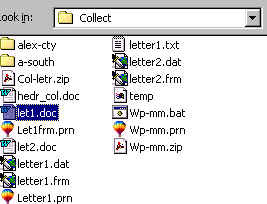
Finally, we select letter 1 to open the master document as shown above, and not repeated here, and then begin the merge process by selection TOOLS, Mail Merge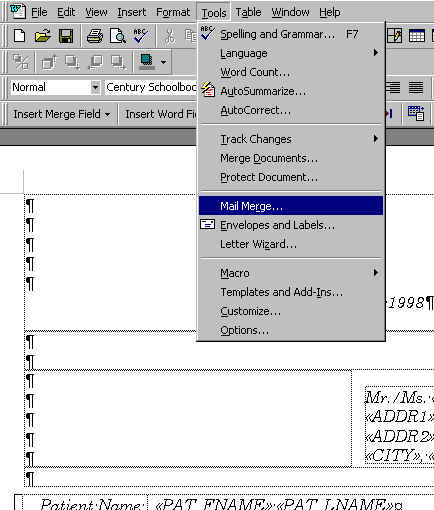
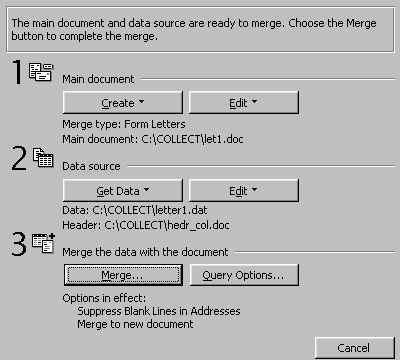
Then Merge
then merge again, after which the merged letters are generated.
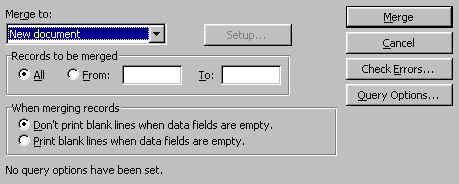
Figure 3 -- Microsoft WORD Master Mail Merge Document
December 7, 1998
Dear Mr. / <<RP_LNAME>>: Your City Ambulance Service (LaGrange, Georgia) has authorized CES as an
agency We have billed you multiple
times in the past, but our records still show a past due balance A reasonable payment plan is
available to you if you make the effort to contact us immediately. If we do not hear from
you within 10 days, we will turn your account over to a I am deliberately withholding
any action on your account for the next ten (10) days. If we do Please extend us the courtesy of a toll-free phone call at 1-800-482-4704. Sincerely, |
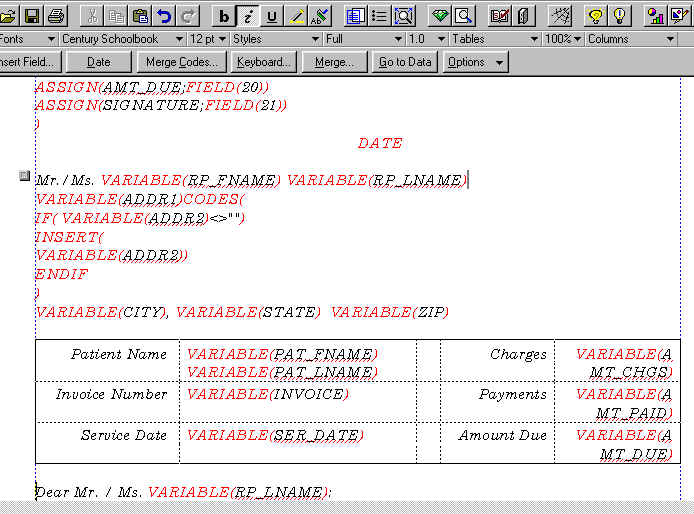
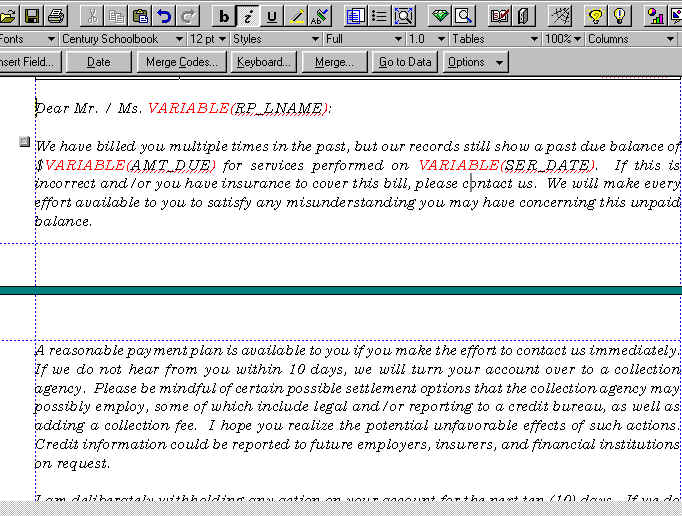
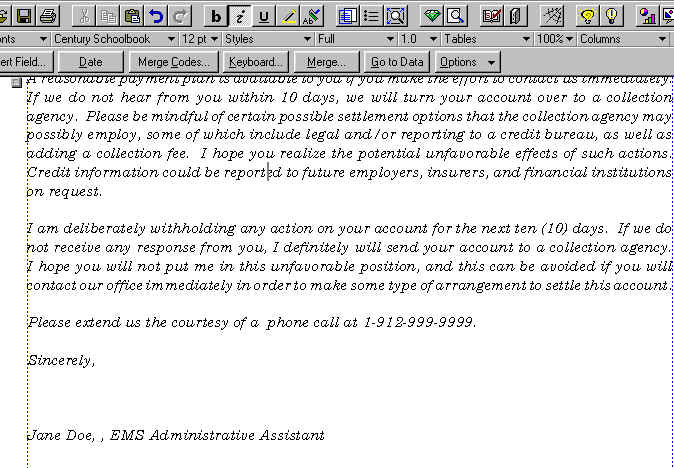
Figure 4 -- WordPerfect Master Mail Merge Document
A series of screen captures show the content of the
Master Document
|
The procedure for all letters (letter1, letter2, etc.) is the same, and therefore, only letter1 is demonstrated below. The letter above was generated by opening Letter1.frm (shown below in figure 4) as a mail merge document. Certain things must be in place to do the mail merge, and starting from square 1 are as follows:
- You must have a place for collection data to go when the extract function is executed.
this place is user-defined in company screen1, and looks like this
 Here we have specified the hard disk drive C and subdirectory COLLECT. You must make
a COLLECT sub directory by getting to DOS Prompt (and there are other ways) and to the
root directory of the C Drive and typing MD COLLECT (Make Directory COLLECT)
Here we have specified the hard disk drive C and subdirectory COLLECT. You must make
a COLLECT sub directory by getting to DOS Prompt (and there are other ways) and to the
root directory of the C Drive and typing MD COLLECT (Make Directory COLLECT) - You must generate a master document in the COLLECT directory as shown in figure 4 -- a sample will be supplied, and you can modify to suit.
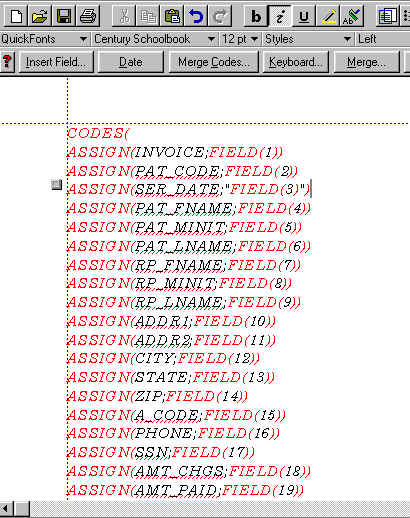
- You must have information at the top of your letter (ASSIGN statements) to define the relationship between the fields in the master document with the names and positions in the extracted data. For example, the Patient's first name is called PAT_FNAME and is in position 4 of an extracted data record--you can relate information at the top of your letter (the fourth ASSIGN statement) to the letter shown above, as well as the WordPerfect document in figure 4 . below.
- Your COLLECT sub directory should have the following files, but you may name these files
differently:
File Name Description LETTER1.FRM Master document-Letter1 LETTER2.FRM Master Document-Letter2-Optional unless you are using two collection letters LETTER1.DAT Extracted collection data-letter 1 LETTER2.DAT Extracted collection data-letter2 - If you do not have an existing LETTER1.DAT file when attempting to merge a document, you will get an error message--note that LETTER1.DAT is deleted prior to extraction, and if there are no letters to extract, you will not have a LETTER1.DAT in the COLLECT directory.
- First open the file C:\COLLECT\LETTER1.FRM. The Master document will appear as shown in figure 4 above, and as partially shown below.
- Then click on the MERGE button and a drop down image will appear. Click MERGE again (upper right radio button)
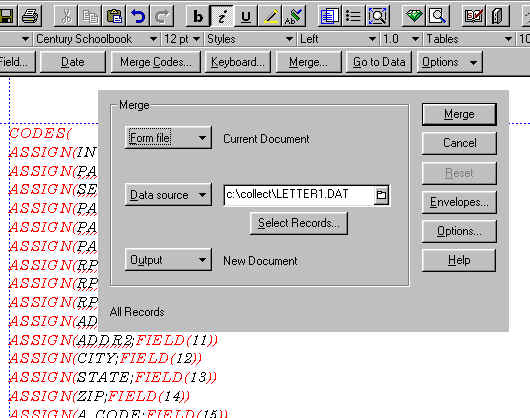
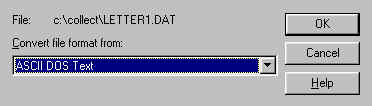
Use the down arrow if necessary and select ASCII DOS Text, then press OK.
A series of letters will be printed as shown above. These letters can
be mailed
Content adapted from the CES EMS Fast Cash Billing Manual on ces-web.com. For support call (706) 882-4704 or email mail@ces-web.com.