Post Charges
Invoice-Post Charges
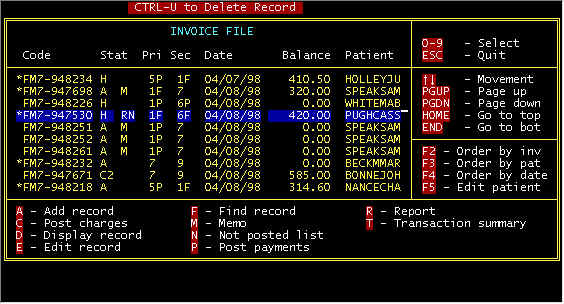
Immediately after entering a new invoice, this
is the best time to post charges. From the main invoice screen (below) selecting
C-Charges will initiate a series of screens to post charges, as shown below.
-
How your Supplies Screen determines which charges will be included on a Medicare/Medicaid claim
-
How your software assist you in selecting charges to be posted
-
A-Add (add a charge after posting the default charges)
-
E-Edit (change a charge description, price, etc.)
-
Post an adjustment to a charge posted in a previous accounting period
-
M-Mark (Mark a charge and/or adjusting entry not to be filed on a claim)
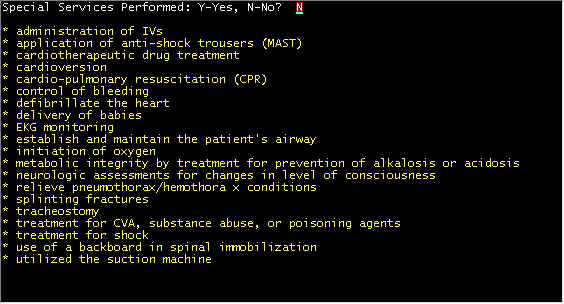
Post Charges Screen 1 - Special Services
If you are billing method 2, there
are 4 ALS Base Rates, 2 non-emergency and 2 emergency. To differentiate between the
HCPCS codes, it must be specified as to whether a special service was performed, and what
a particular Medicare Carrier (state) may determine what special services, the best we
could go on was a list published by a particular Medicare Carrier defined, and above is
that list. Selecting Y(es), for example of method 2 billing, will choose HCPCS A0330
in preference to A0328; entering N(o) will select A0328 instead of A0330. Assuming
you are billing Method 2 ALS billing, and this call was an emergency, and with special
services performed, the following screen will be displayed.
�

Post Charges Screen 2 - Computer Selected Charges
The computer has selected HCPS charges
(codes) for you based on information in the invoice screen, plus a Y(es) answer in the
previous screen, and using logic to select the pre-determined and unchangeable codes
(BASEAES2, e.g.). Enter the LOADED miles and the following screen will be displayed.
�
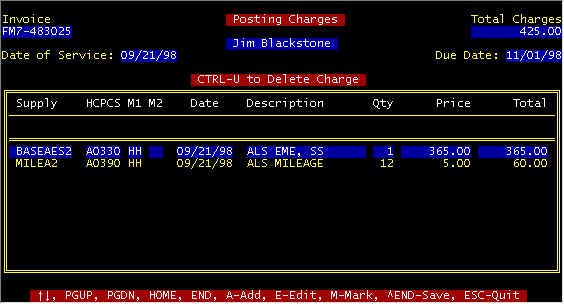
Post Charges Screen 3 - Post Charges Screen
These charges have not have been effected, but are displayed for
acceptance, changes, or additions. Note that the base rate modifiers (HH) and
secondary modifiers (M1, M2-blank here) have been copied from the invoice file. Note
that description and price have been copied from the supplies file.
Your options are listed in the prompt line at the bottom of the screen. Let
us assume that we want to add an additional
charge. Select A-Add option by pressing the A key, and the following
screen is displayed.
�
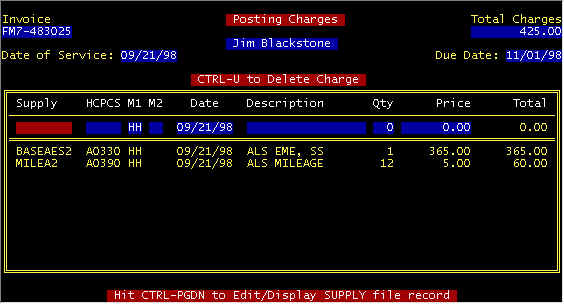
Post Charges Screen 4 - A-Add
A blank line is displayed as shown for entering the additional charge. The
cursor is at the Supply (Code) field, as shown in red. If you know the supply code
(per the supply file), the HCPCS, modifiers,etc. will be
copied, otherwise you can hold down the Ctrl key down and tap the PageDown key and the
supplies file will be displayed. A supply can be highlighted as shown below.
�
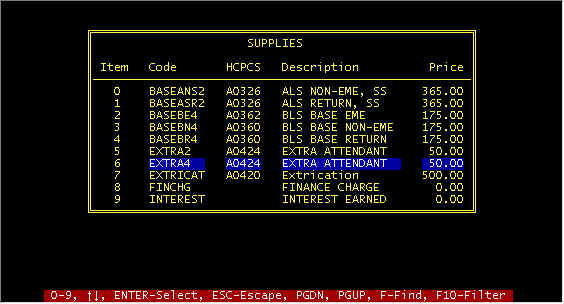
Post Charges Screen 5 - A-Add
After highlighting a supply (Extra Attendant), press the <ENTER>
key and the supply will be added as shown below.
�
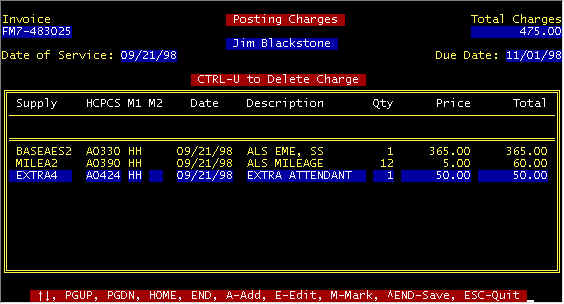
Post Charges Screen 7 - A-Add
Next either press the <ENTER> key several times until the supply is accepted and is displayed below with the other charges, or do a quick save Ctrl END to accomplish the same. To complete posting charges, get screen 7 above to include all of your charges, and to make this effective, press Ctrl END (shown on the prompt line above as ^END-Save due to space), and your charges will be posted at which the main invoice screen above will be displayed.
Edit is another word for change. When you go to the charge screen (Screen 7) one of your options is E-Edit. Suppose you wanted to delete a charge, change a HCPCS code, change mileage, etc. The procedure is similar to adding a charge.
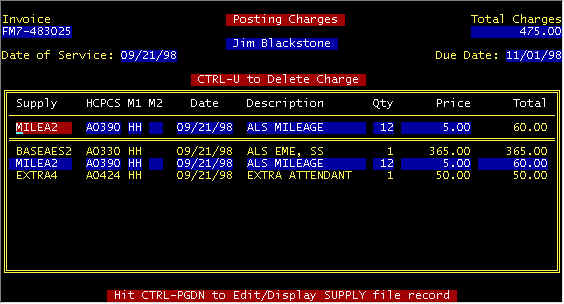
Post Charges Screen 8 - E-Edit
Here, the mileage charge was highlighted and the E key was pressed, whereupon, the charge was copied above. You can delete the charge, change anything about it, and save the charge, followed by making the final save, much like adding a charge above.
Post an adjusting charge for
charges posted in previous accounting periods
and
M-Mark a Charge not to file on a claim
Sometimes it is necessary to revise charges (as well as payments) for
those posted in previous periods, and already accounted for in end of month accounting
reports. Thus, pure accounting requires you not to make changes, but to post
offsetting entries. If subsequent filings are made, these offsetting entries are
confusing. Thus, you can make offsetting entries, mark the previous charge, as well
as the new offsetting charge, and these "marked" charges will not appear on
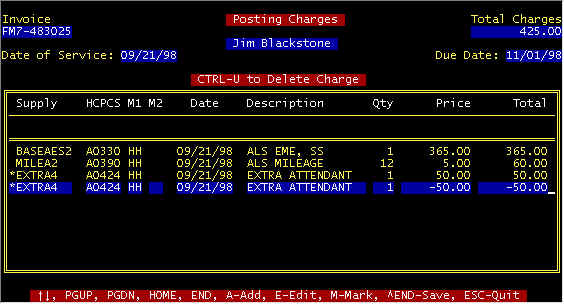
claims filed. For example, assume that charges for screen 4 were posted three months
ago, and you want to nullify the extra attendant charge for future filings. You
would mark the old posting, add the same code with a negative amount, and mark this as
well. When you were through, your charge screen would appear as below--asterisks (*)
denote marked charges.
Content adapted from the CES EMS Fast Cash Billing Manual on ces-web.com. For support call (706) 882-4704 or email mail@ces-web.com.